
GUIDES AND TOOLS
Finding my frequency on my Iphone
How to Check Your iPhone Frequency
Find out which 4G or 5G band your iPhone is using with the hidden Field Test Mode and identify which frequency you need if you want to improve mobile coverage.
See the steps ↓ Check frequency bands|
⚡︎
|
Quick access to Field Test Mode Turn off WiFi, enable mobile data, open the Phone app and dial this code. | *3001#12345#* |
Why do you need to know your iPhone frequency?
Your iPhone can automatically switch between different bands depending on your carrier, location, available coverage and network congestion. Knowing which band you actually receive is especially useful before choosing a mobile signal booster.
|
⌂
If you have poor coverage at homeCheck which band reaches the outside of your home. Indoor signal measurements can be heavily weakened by walls, windows and other obstacles. |
≋
If you are going to install a repeaterThe band your iPhone receives determines which frequencies the equipment should amplify. For example, Band 20 corresponds to 800 MHz and n28 to 700 MHz. |
How to Check the 4G or 5G Band on Your iPhone
We will use the Field Test technical menu built into iOS.
|
1
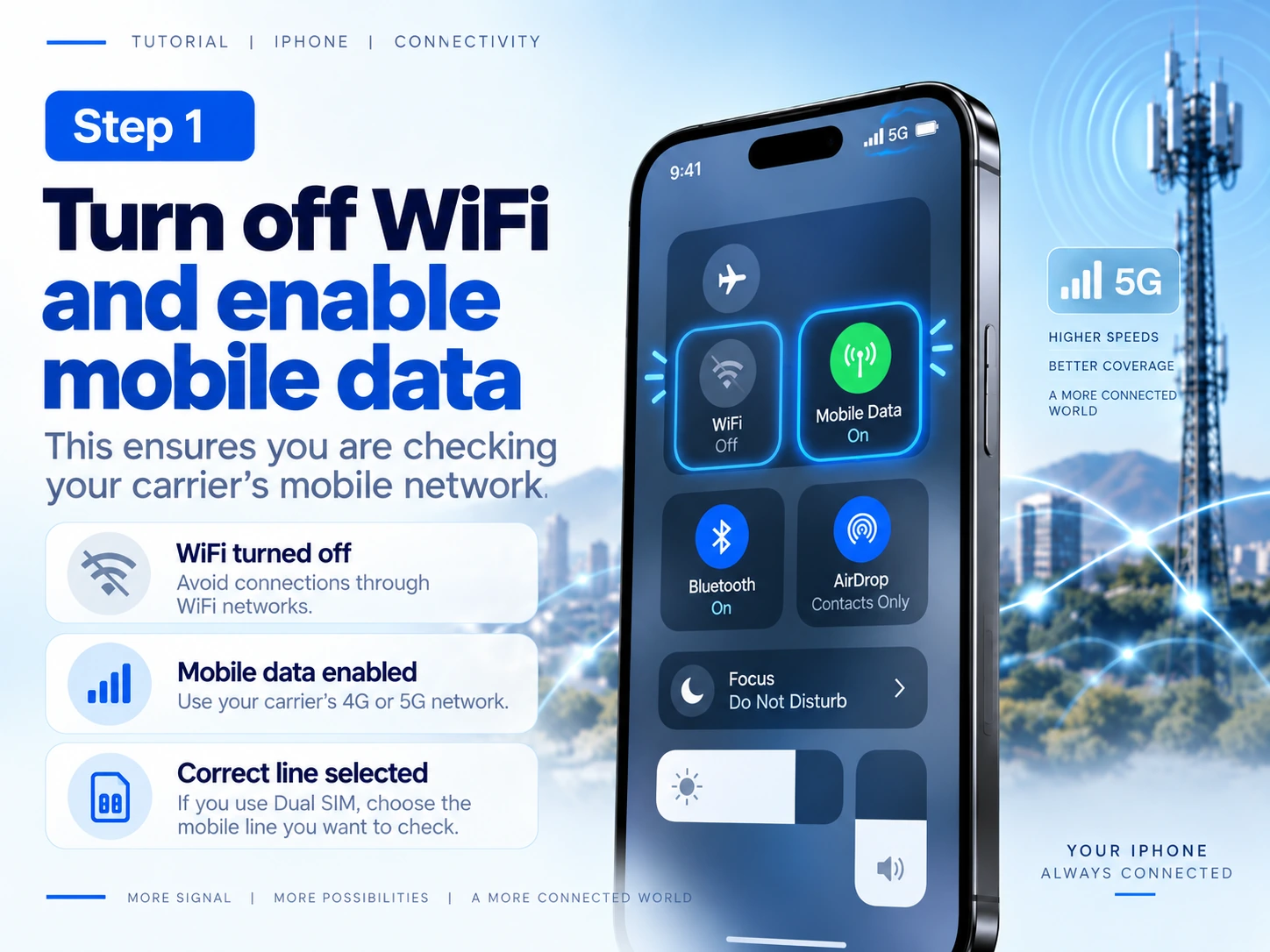
Turn off WiFiEnable mobile data and turn off WiFi to make sure you are checking the mobile network. |
2
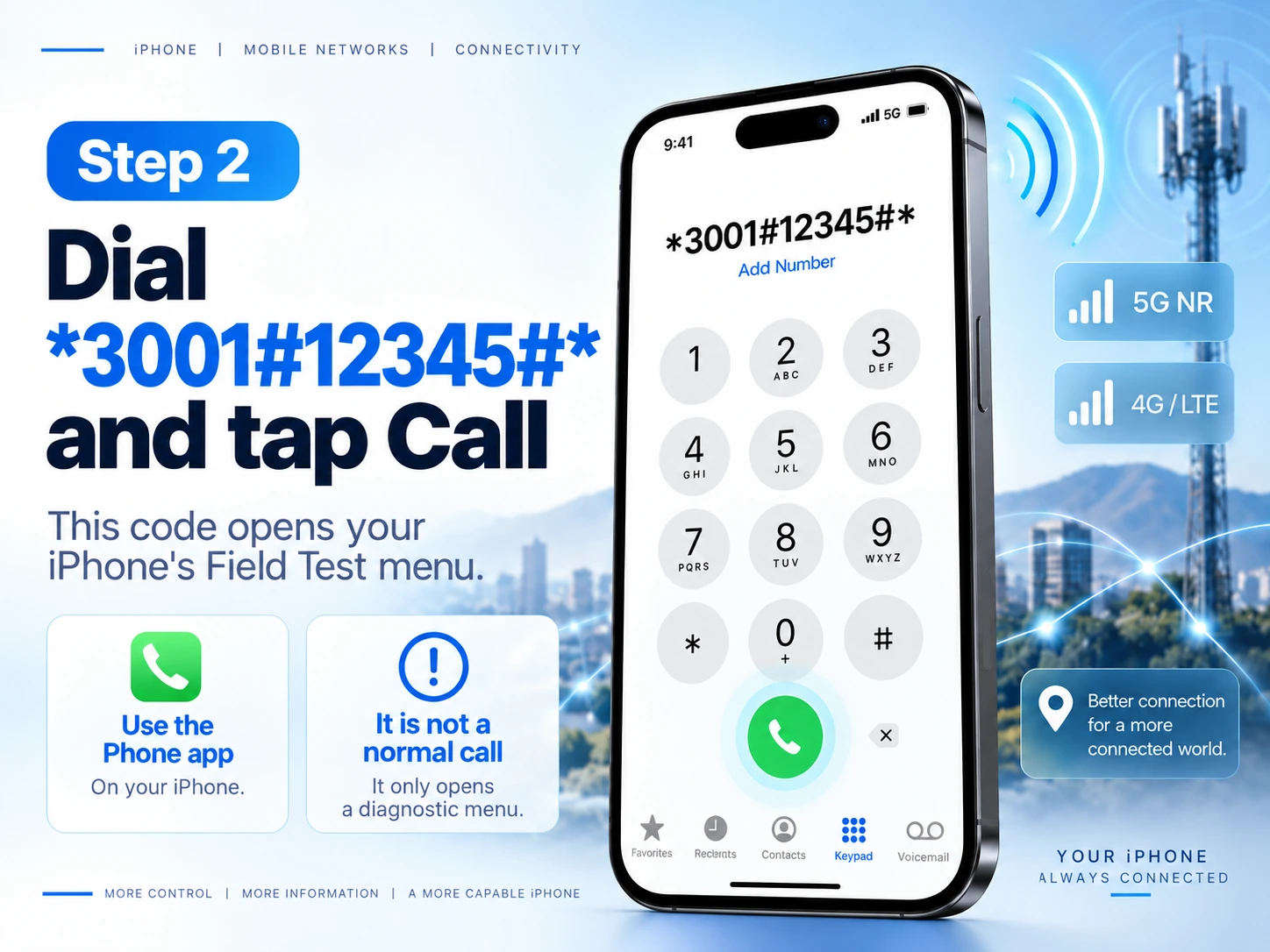
Open the Phone appEnter the code on the keypad and press the call button. *3001#12345#* |
3
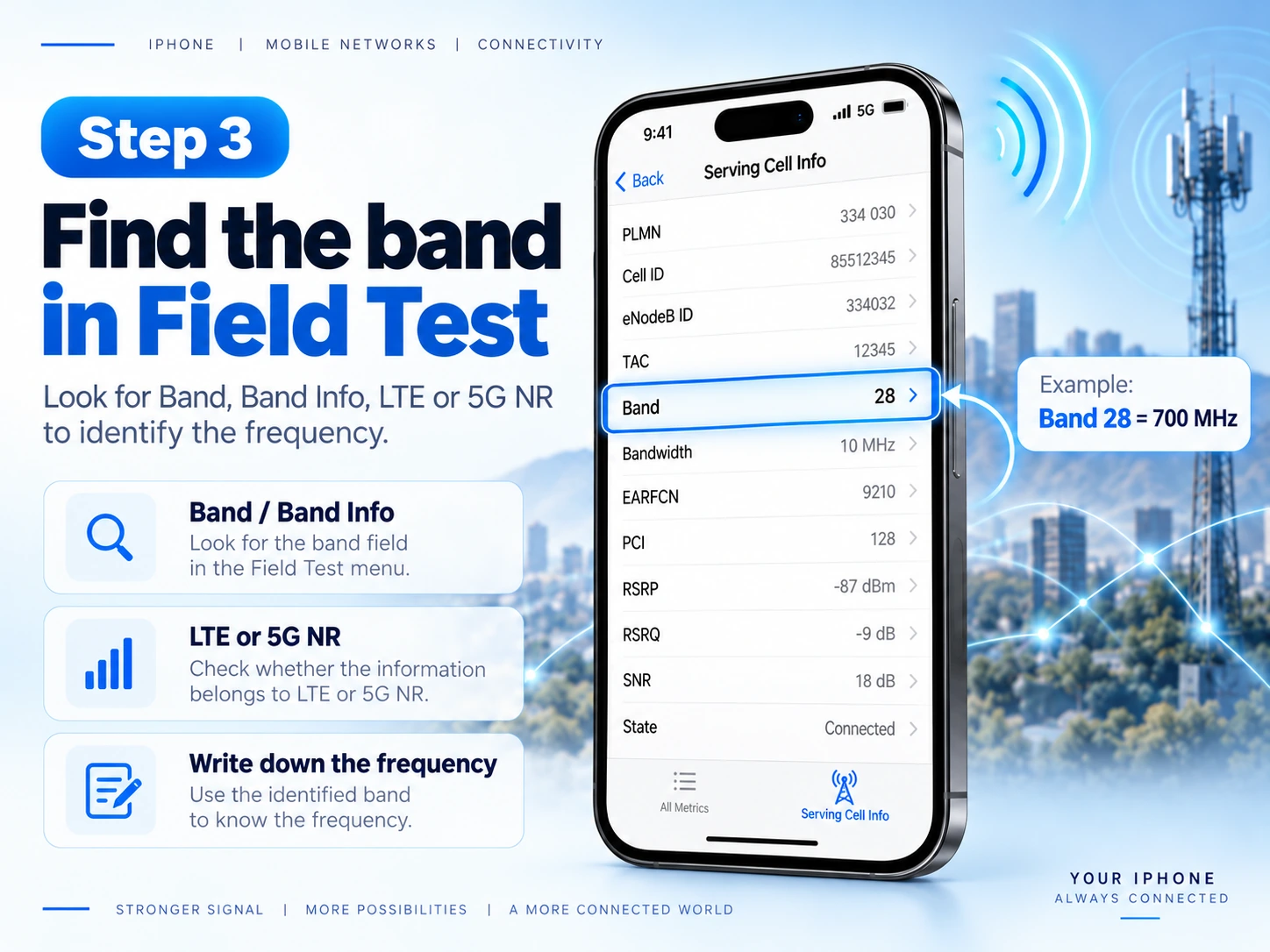
Find the bandInside Field Test, look for information such as Serving Cell Info, Band Info, LTE or 5G NR. |
 |
Step 1
Turn off WiFi and enable mobile dataThis ensures that the information shown in Field Test belongs to your carrier's mobile network. ✓ Turn off WiFi. ✓ Enable mobile data. ✓ If you use Dual SIM/eSIM, select the line you want to check. |
 |
Step 2
Dial *3001#12345#* and press CallYour iPhone will open the Field Test menu. This is not a normal phone call: the code opens a technical diagnostic tool built into iOS. |
 |
Step 3
Find the active cell informationDepending on your iOS version and carrier, the names and positions of the menu items may vary. Look for the LTE or 5G NR band currently being used by your iPhone. ✓ Band 20 → 800 MHz ✓ Band 3 → 1800 MHz ✓ Band 28 / n28 → 700 MHz ✓ n78 → 3500 MHz (5G) |
Common Mobile Bands Your iPhone May Display
Availability depends on your carrier, location and iPhone model.
| Frequency | Common band | Technology |
|---|---|---|
| 700 MHz | Band 28 / n28 | 4G / 5G |
| 800 MHz | Band 20 | 4G LTE |
| 900 MHz | Band 8 | 2G / 4G |
| 1800 MHz | Band 3 | 2G / 4G |
| 2100 MHz | Band 1 / n1 | 4G / 5G |
| 2600 MHz | Band 7 | 4G LTE |
| 3500 MHz | n78 | 5G |
What if LTE and 5G information appear at the same time?
This can be completely normal. Some 5G connections use LTE as support, so Field Test may show information from both technologies.
|
4G
LTEIf LTE information appears, look for the band number of the serving cell. |
5G
5G NROn a 5G connection, look for NR-related fields and the band being used, such as n28 or n78. |
Take several measurements outdoors
If you are checking the frequency to install a repeater, test the signal where the outdoor antenna could be installed. Do not rely on a single measurement.
RSRP, RSRQ and SINR on iPhone
These values relate to signal power and quality, not frequency.
RSRPMainly indicates the power of the received mobile signal. |
RSRQHelps evaluate the quality of the received LTE signal. |
SINRCompares the useful signal with interference and noise. |
Do you already know which band your iPhone is using?
The next step is to choose a repeater compatible with the frequencies available in your area. Browse Wireless Lan mobile signal boosters.
View mobile signal boosters →Common Questions About Field Test and iPhone Bands
What is the code to open Field Test on iPhone?
Open the Phone app, dial *3001#12345#* and press the call button.
Why does Field Test look different on my iPhone?
The interface can change between iOS versions, iPhone models and carriers. Look for sections related to the active cell, LTE, 5G NR and Band.
Which frequency is Band 20?
Band 20 corresponds to 800 MHz.
Which band corresponds to 700 MHz?
In Europe, 700 MHz is commonly associated with Band 28 in LTE and n28 in 5G.
What does n78 mean?
n78 is one of the bands used for 5G in the approximate 3.5 GHz range.
Can an App Store app show exactly the same data?
iOS limits third-party access to certain modem data. For directly checking your iPhone's internal radio metrics, Field Test is usually the most useful reference.
Should I check the frequency indoors or outdoors?
If you are planning to install a repeater, take several measurements outdoors, especially near the place where the outdoor antenna could be installed.
Guide for reference only. Field Test content and menu names may vary depending on iOS version, iPhone model and carrier.